

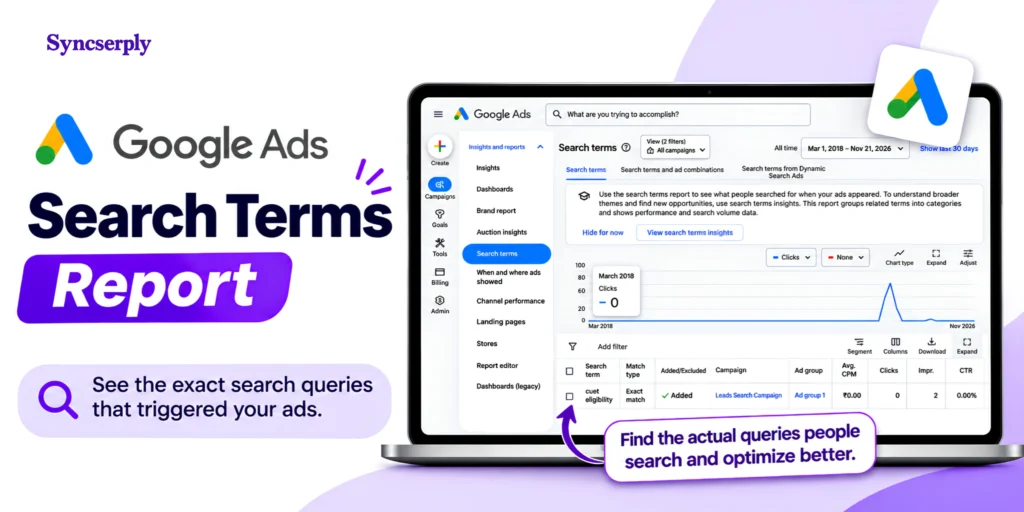
You choose the keywords. Searchers choose the words. The gap between the two is where a surprising amount of Google Ads budget disappears.
The search terms report shows you that gap. It lists the real searches that triggered your ads, along with what each one cost and whether it converted. Used well, it is the fastest way to stop paying for clicks that were never going to become customers.
Quick answer: The search terms report lists the actual searches that triggered your ads, with clicks, cost and conversions for each. To find wasted spend, open it (Campaigns > Insights and reports > Search terms), sort by cost, and look for terms that spend money without converting or that show the wrong intent. Then block them with negative keywords or tighten the keyword that matched them.
In this guide you will learn how the report works, what it can and cannot show you, a five-step audit you can repeat, and how to fix what you find without cutting good traffic.
What is the search terms report?
Google describes the search terms report as showing how your ads performed when triggered by actual searches within the Search Network. It is the one place where you see what people typed, not what you bid on.
The distinction matters:
- A search term is the word or phrase a person types into Google.
- A keyword is what you add to an ad group to decide which searches can trigger your ads.
They are often different. Google’s own example: if you sell tulips and use the broad match keyword flowers, your ad can show for red roses and purple orchids, flowers you do not sell. The report is how you catch that.
The limitation most guides skip: hidden search terms
The report does not list every query. Google includes only terms that a significant number of people searched for, and omits low-volume queries to meet its privacy standards. Google’s API documentation is explicit that clicks from these hidden terms still count in your campaign totals but do not appear in the search terms report.
How big is the hidden share? Google does not publish it, and independent estimates vary. One analysis of more than $20 million in ad spend, by Collin Slattery of Taikun Digital, estimated that about 27% of search spend was hidden, with individual accounts ranging from roughly 13% to 73% of keyword volume hidden. Treat that as one data point from one dataset, not an industry constant. Google’s Ads Liaison has said the higher threshold was solely privacy-driven.
Two practical takeaways:
- Measure your own gap. For a date range, compare a campaign’s total cost with the total cost shown in its search terms report. The difference is spend on queries you cannot see.
- Use Search terms insights as a complement. It groups queries into categories and subcategories, including low-volume ones, so you can spot themes the report hides. You can find it on the Insights page under Insights and reports. Note that its category labels are generated from the last 56 days of data, so they can include terms that are no longer serving.
Where to find the search terms report
- In your Google Ads account, click Campaigns in the left navigation panel.
- Open the Insights and reports menu.
- Click Search terms.
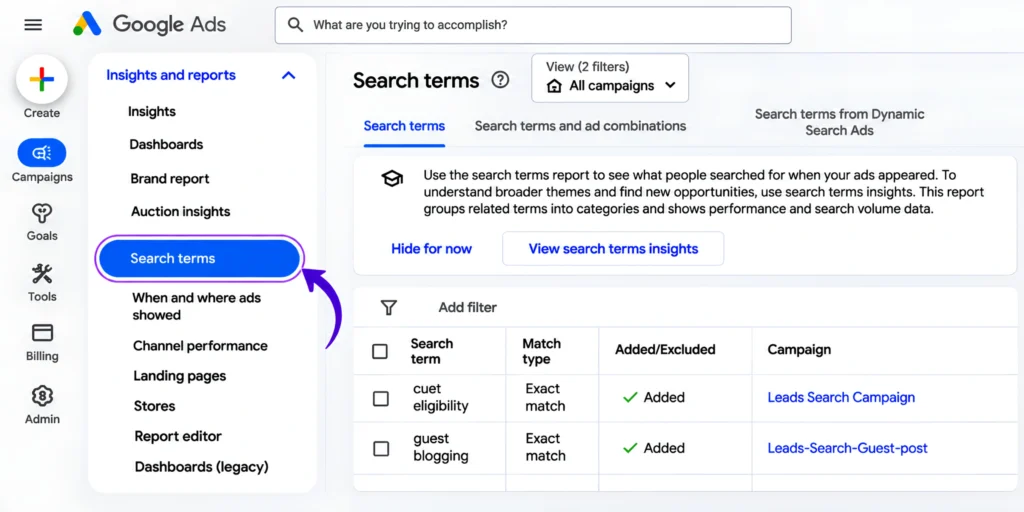
You can also reach it through the report editor: Insights and reports > Report editor > Predefined reports (Dimensions) > Basic > Search terms. One catch: from that view you cannot add keywords or negative keywords directly, so use the main Search terms page when you plan to take action.
Google changes menu labels from time to time, so if yours looks different, search the Help Center for the current path.
Set up the report to expose waste
Before you read a single row, configure the report so waste is easy to see.
Pick a useful date range. A longer range gives each term more clicks to judge. Thirty days is a common starting point; low-volume accounts often need longer. Keep in mind that conversions can lag, so very recent days may undercount results.
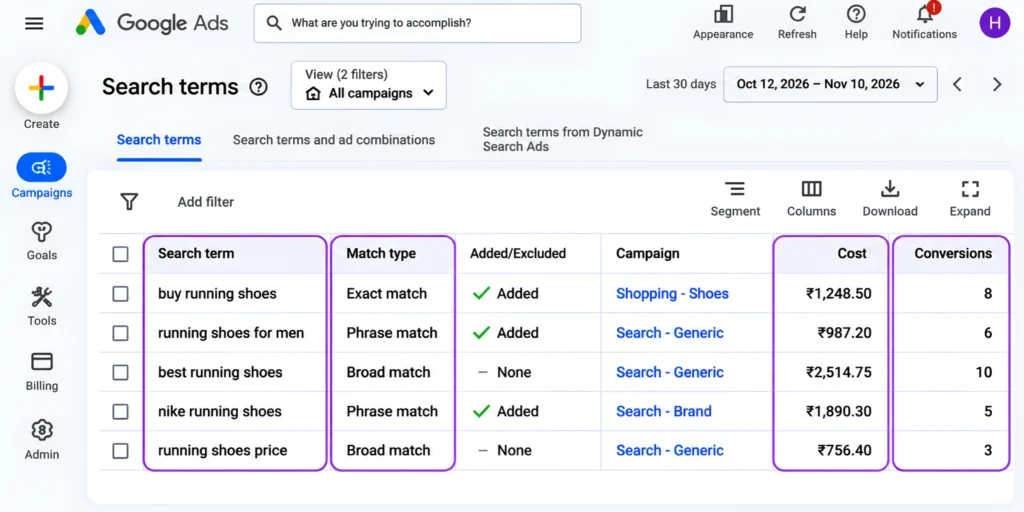
Add the right columns. Click the columns icon and add:
- Keyword (under Attributes). Google’s documentation calls it Keyword, so check how your interface labels it. It is not shown by default, and it tells you which of your keywords matched each search. Some rows will have no keyword at all, such as Shopping, Dynamic Search Ads and AI Max keywordless matches, because no keyword you chose triggered them.
- Match type, which shows how closely each search relates to your keyword.
- Cost, clicks, conversions, cost per conversion and conversion rate.
Sort by cost, highest first. The most expensive terms are where a fix saves the most.
Segment by network. On Search Partners, search terms can look longer or oddly formatted, so segmenting helps you see whether partner traffic is behind the strange queries.
Read the match type column correctly
The match type shown is how the search term matched, and it can differ from the match type you set on the keyword. Google’s example: your broad match keyword purple flowers can show Exact match when someone searches exactly purple flowers, Phrase match for free purple flowers, and Broad match for pink flowers. Close variants such as plurals, misspellings and abbreviations appear in the report as “Exact match (close variant)” or “Phrase match (close variant)”.
The 5-step wasted-spend audit
Step 1: Find the expensive terms that do not convert
Sort by cost, then filter for conversions equal to zero. The top of that list is your first suspect pile: terms that have already taken real money without a return.
If every term in the report shows zero conversions, check your tracking first. Our guide on Google Ads spending money but getting no conversions walks through the checks in order.
Step 2: Read the intent behind each term
Ask one question per term: would this person plausibly buy what I sell? Irrelevant intent is the clearest form of waste, and you do not need conversion data to spot it. Google’s own example is a seller of eyeglasses whose ads appear for wine glasses.
Step 3: Trace each bad term to the keyword that caused it
Use the Keyword and Match type columns. If one broad keyword is responsible for most of the junk, adding a negative may only treat the symptom. Tightening that keyword’s match type, or replacing it with a more specific one, can be the better fix.
Also check whether the term is landing in the right place. A search can be perfectly relevant yet trigger the wrong campaign or ad group, for example a high-intent search matching a broad, top-of-funnel keyword and sending people to a generic landing page. In that case the fix is routing, not blocking: add a negative to the campaign or ad group that should not serve it, and confirm that a more specific keyword in the right place can still catch the search, otherwise you lose the traffic.
Step 4: Check how much evidence you actually have
Zero conversions is not always proof of waste. Math helps here. If a search term converts at 3%, the chance of seeing zero conversions in 50 clicks is about 22% (0.97 to the power of 50). After 100 clicks it falls to about 5%. So a term with 12 clicks and no conversions is not yet a verdict.
Use this rule of thumb (a practical heuristic, not a Google rule):
- Clearly irrelevant intent: block it now, whatever the data says.
- Relevant but unproven: keep watching, or lower exposure, until it has enough clicks to judge against your usual conversion rate.
Step 5: Mine the winners too
The same report shows terms that convert but are not in your keyword list. Google notes the report can help you discover new keyword ideas and ad and landing page content. Add strong performers as keywords so you control their bids and messaging.
Common wasted-spend patterns
The examples below assume a company selling project management software. They are illustrative, so adapt them to your business and check each against your own offer before blocking anything.
| Pattern | Example search | Typical fix |
|---|---|---|
| Learners and researchers | what is project management, project management course | Negative keywords such as course, certification, definition |
| Job seekers | project manager jobs, project manager salary | Negatives such as jobs, salary, careers |
| Free-seekers | free project management software | Negative free, only if you have no free plan |
| Competitor navigation | [competitor] login | Exact match negative, or a separate competitor campaign |
| Wrong niche or product | project management software for construction | Negative construction, only if you do not serve it |
How to fix it with negative keywords
Adding a negative keyword tells Google not to show your ad for matching searches.
From the report: select the terms, choose to add them as negative keywords, and pick whether they go to an ad group, a campaign or a negative keyword list. By default, negatives added from the report to a Search campaign are added as negative exact match. To change the match type, use the match type symbols: quotation marks around the term for phrase match, square brackets for exact match, and no symbols for broad match.
Negative match types work differently from positive ones
This is where many accounts go wrong. For the negative keyword running shoes:
| Negative match type | Blocks | Does not block |
| Broad (default) | running shoes, shoes running, blue running shoes | running shoe, blue tennis shoes |
| Phrase | running shoes, blue running shoes | shoes running, running shoe |
| Exact | running shoes only | blue running shoes, shoes running, running shoe |
Negative keywords also do not match close variants. If you want to block plurals, synonyms or common misspellings, add them yourself.
Choose the right level
- Ad group or campaign: for exclusions that only make sense in one place.
- Negative keyword lists: for terms you want applied across several campaigns. Google allows up to 20 shared lists per account, with up to 5,000 keywords per list.
- Account level: one global list that applies across Search and Shopping inventory, up to 1,000 keywords per account.
- Campaign limit: up to 10,000 negative keywords per campaign.
These limits can change, so confirm them in the Help Center if you are close to them.
Do not over-block
Every negative removes some reach. Block clear mismatches, test borderline terms with caution, and revisit old negatives if volume drops without explanation.
Our guide to negative keyword conflicts and exclusion strategies shows how to spot a negative that blocks good searches.
Performance Max and AI Max: what changes
Performance Max
There is a search terms report for Performance Max, with data going back to March 2023. Google advises prioritizing conversion data over clicks and impressions when evaluating these campaigns, and notes that store visits and store sales conversions are not compatible with the report. Campaign-level negative keywords are now available for Performance Max, as are campaign-level negative keyword lists, and they apply to Search and Shopping inventory. For brand searches, Google recommends brand exclusions over negative keywords. Google also offers a tool to estimate the impact of a negative before you add it.
AI Max for Search
Your search terms report can show an AI Max match type, plus a source column showing whether a match came from broad match expansion or keywordless matching. Google’s guidance is to review search terms every 1 to 2 weeks and to add negatives only when a term is not performing against your goals across campaigns, rather than trying to make every match look relevant.
Also note that Google began automatically upgrading Search campaigns that use automatically created assets or the campaign-level broad match setting to AI Max on September 1, 2026. The automatic upgrade of Dynamic Search Ads was pushed back to February 2027, so check which of these apply to your campaigns.
Build a repeatable routine
A one-time cleanup helps. A habit helps more.
- Cadence: Google’s AI Max guidance suggests every 1 to 2 weeks. A reasonable baseline for most Search accounts is weekly for larger budgets and monthly for small ones.
- Each review: sort by cost, filter for zero conversions, read intent, trace to the keyword, apply the evidence check, then add negatives or fix keywords.
- Keep a log: note what you blocked and why, so you can reverse mistakes later.
- Re-check the hidden gap: compare campaign cost with search terms report cost every quarter or so.
Mistakes to avoid
- Blocking on thin data. Twelve clicks is not a verdict.
- Blocking terms that actually convert. Check conversions before every negative.
- Using broad negatives carelessly. One short word can cut off good searches.
- Assuming negatives catch variants. They do not, so add plurals and misspellings you care about.
- Ignoring what you cannot see. If a large share of spend is hidden, the visible report understates the problem.
- Treating every automated match as an error. In AI Max and Performance Max, judge by performance against your goals.
FAQ
Conclusion
The search terms report is the most direct view you get of how real searchers meet your ads. Sort by cost, read the intent, trace problems to the keyword that caused them, and wait for enough data before cutting uncertain terms. Remember that part of your spend sits in queries Google does not show, so review the report alongside your campaign totals.